
Team and roster
Player and staff profiles: details, photos, positions and account linking.
In the Team section you'll find two lists: Players and Staff. Each person has a profile with their details. The profile is separate from the account: you can set up the entire roster even before your athletes sign up, and link the profiles to their accounts later.
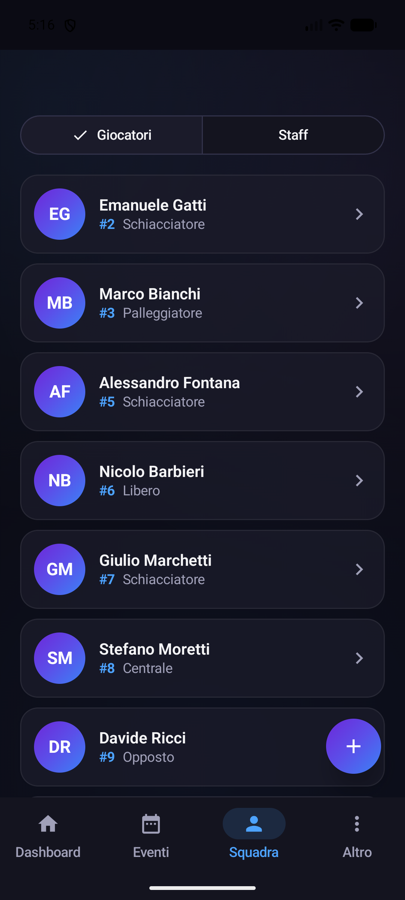
The player profile
It contains:
- First and last name
- Photo, with cropping at upload time
- Jersey number
- Position: Setter, Opposite, Outside Hitter, Middle Blocker, Libero or Universal
- Date of birth, which powers the birthday banner on the Dashboard
- The Active/Inactive status (visible only to coaches and staff)
- The Linked/Not linked badge: shows at a glance whether the profile has a registered account
Opening a profile also shows the player's individual season stats: total points and their breakdown across attack, block and serve, plus the number of matches played.
The staff profile
It contains the first name, last name and a role chosen from: Head coach, Assistant coach, Athletic trainer, Physiotherapist, Team official, Scoutman, President. By choosing "Other" you can enter a custom role (e.g. "Team manager"). You can add a date of birth for staff too, so their birthdays appear on the Dashboard.
Adding, editing, deleting
- Open Team and choose the Players or Staff list.
- Tap the + button to create a new profile, or tap an existing profile to edit it.
- Fill in the fields and tap Save.
To delete:
- Player: open the profile and tap Delete player. Only the coach can do this, and it cannot be undone.
- Staff: open the profile, tap Edit and then Remove from team. The profile disappears from the roster; if an account was linked, it stays active and is simply unlinked.
Linking a profile to an account
When an athlete or staff member signs up in the app, they get an account. Linking it to their roster profile lets them experience the app first-hand: they see their own stats, receive personal birthday wishes on their special day, and the coach instantly knows who each account belongs to.
You can link in three ways:
- When approving a join request. When you approve someone joining the team, choose Create profile (built from the details they provided at sign-up), Link to existing profile or Approve only.
- From the "To link" section. In Settings → Invite new users you'll find approved accounts without a profile: tap Profile next to the name and choose whether to create or link.
- From the player profile. In the "Linked account" card, tap Link (or Change) and search for the user by name or email. From here you can also unlink.
Who can edit what
- The coach can do everything: create, edit and delete profiles, and manage account links.
- Staff can add and edit profiles only with the "Edit the team" permission, which the coach manages in Settings → Members and permissions.
- Athletes can view the roster but not edit it.