
The Dashboard
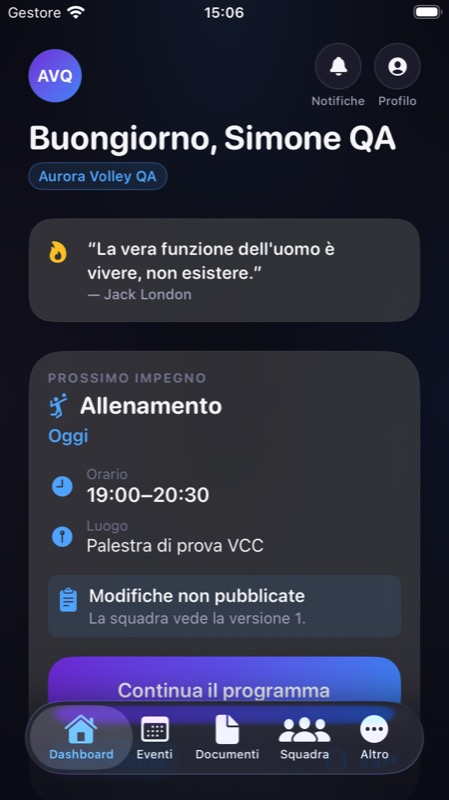
The app's home screen: the team's month, the next commitment and what's new, with one main action at a time.
- Web app available now.
- iPhone and Android version 2.2.0 is available on the App Store and Google Play. Update the app to use the new features.
The month calendar
The Dashboard shows the full month, including past days. A small flame appears only on days with events.
- Tap a day: the list of that day's commitments appears below the calendar.
- Tap a commitment to open it. Linked matches open the match page directly.
- Use the arrows to change month and the command to go back to today.
If loading fails, the Dashboard shows an error: a month with no commitments and a network error aren't confused.
The next commitment
The next sports commitment card has one main action and access to the event. Less frequent actions are under More.
The updated web app is available now. Mobile version 2.2.1 has been submitted to the stores for review; the new controls will be available after approval and installation of the update.
In version 2.2.1, Open training session leads coaches to the event without requiring a plan. Existing event time ranges, such as 20:00–22:30, are shown correctly. A missing-time label is used only when no valid time is available.
Today's practice (athletes)
If today there's a practice with a published plan, athletes see Today's practice (Allenamento di oggi) with the button for the selected shared plan. From version 2.2.1 this can also be Open PDF programme when the coach shared a PDF, even when the next commitment listed is another one. Coach drafts and notes never appear.
Recent documents
The last three documents in upload order, each with its origin: General Archive or Match Documents with the match name. Tap to preview. See Documents.
First steps: hiding the card
Coaches see the First steps checklist (logo, invites, first event, first document…). When you no longer need it, tap the X: the card disappears and the choice is remembered for your account in that team. If saving fails, the card stays visible and you can try again.
Greeting, birthdays, polls and notifications
- Greeting and daily quote: a greeting with your name, the team logo or initials and a motivational quote.
- Birthdays: if a player or staff member has a birthday today, a greeting banner appears. The birth date must be on the profile; personal wishes appear when the profile is linked to the account (see Team and roster).
- Active poll: a banner takes you to answer.
- Bell and Profile: at the top you'll find notifications (see Notifications) and access to your personal card.
What changes by role
- Coach: calendar, next commitment, recent documents and First steps.
- Athletes: calendar, next commitment, recent documents and, when there is one, Today's practice.
- Staff: the same overview; the commands available in the rest of the app depend on the permissions assigned.
The Dashboard only shows what your role can already see: it doesn't grant extra access.
Switching teams with the Club plan CLUB
If you're a coach on the Club plan with two teams, Switch team appears next to the team name.
- Open the Dashboard.
- Tap Switch team.
- Pick the team to work on: the whole app switches to that team.