
Physiotherapy
Sessions with the team physiotherapist: working hours, bookings, swaps and treatment history, with health information visible only to authorised people.
If the staff includes a person with the Physiotherapist role and a linked account, the More → Physiotherapy section is enabled for the team. It opens on a tile menu: the tiles you see depend on your role.
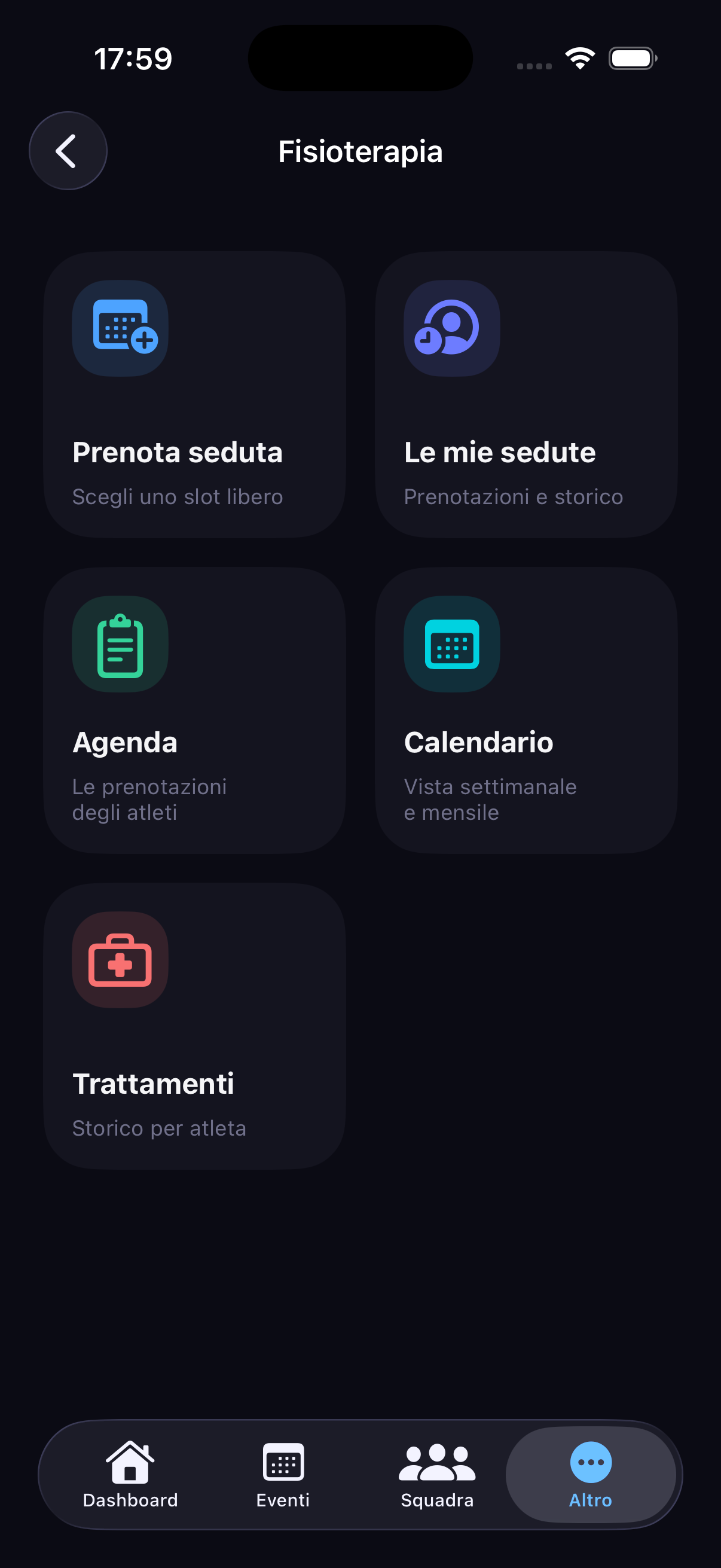
Who sees what
| Role | What they see and can do |
|---|---|
| Physiotherapist | Manages their own agenda: hours, approvals, treatments. Doesn't automatically manage colleagues' agendas. |
| Coach | Team agenda (who booked, date, status and the information provided for that role), completed treatments filterable by person and period; can manage approvals and revocations. |
| Staff | Can view the agenda, but reasons and treatment details are hidden. Their personal history of their own sessions stays separate. |
| Athlete | Their own bookings and treatments. For teammates they only see that a slot is taken, and by whom. |
For the physiotherapist
Working hours
- Open Physiotherapy → Working hours.
- Tap Add hours: recurring (e.g. every Tuesday) or single day.
- Set the time range (e.g. 5–7 pm) and the length of each session (e.g. 20 minutes).
Slots are generated automatically: in the example, six 20-minute slots every Tuesday. You can edit or delete hours; confirmed bookings are kept.
Booking approval
The "Approve bookings automatically" switch (in Working hours and in the Agenda):
- on (default): bookings are confirmed immediately and you can revoke them;
- off: requests stay pending until you approve or decline them.
Agenda and treatments
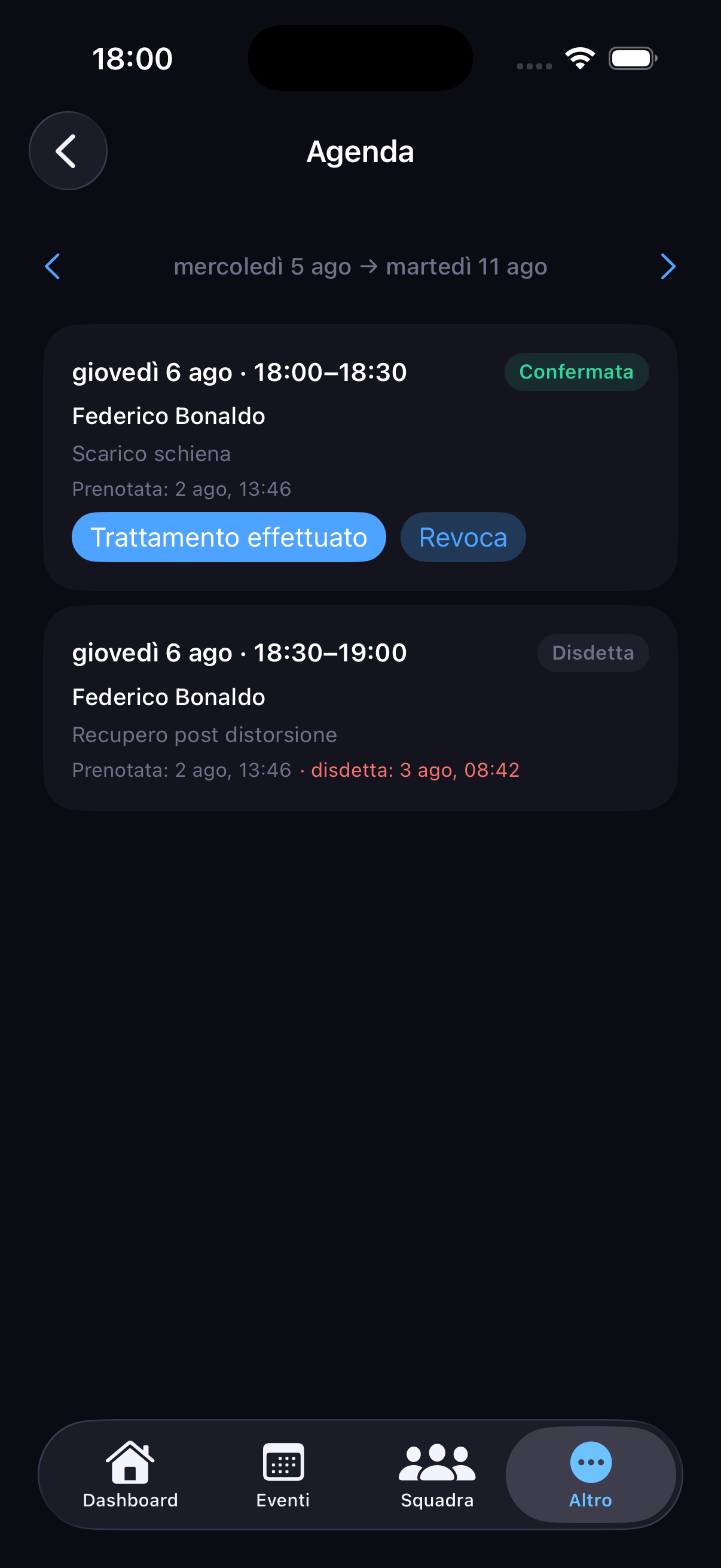
The Agenda shows bookings with the reason and the history: bookings and cancellations stay on record. After a session tap "Treatment done": confirm the reason or correct it with the actual assessment. The session enters the treatment history.
The Calendar shows month or week, with a dot on busy days; tap a day for its appointments.
For those who book: athletes, coach and staff
Athletes whose account is linked to their player card, the coach and approved staff members can book. A Coach or Staff label appears next to the name when the booker isn't an athlete.
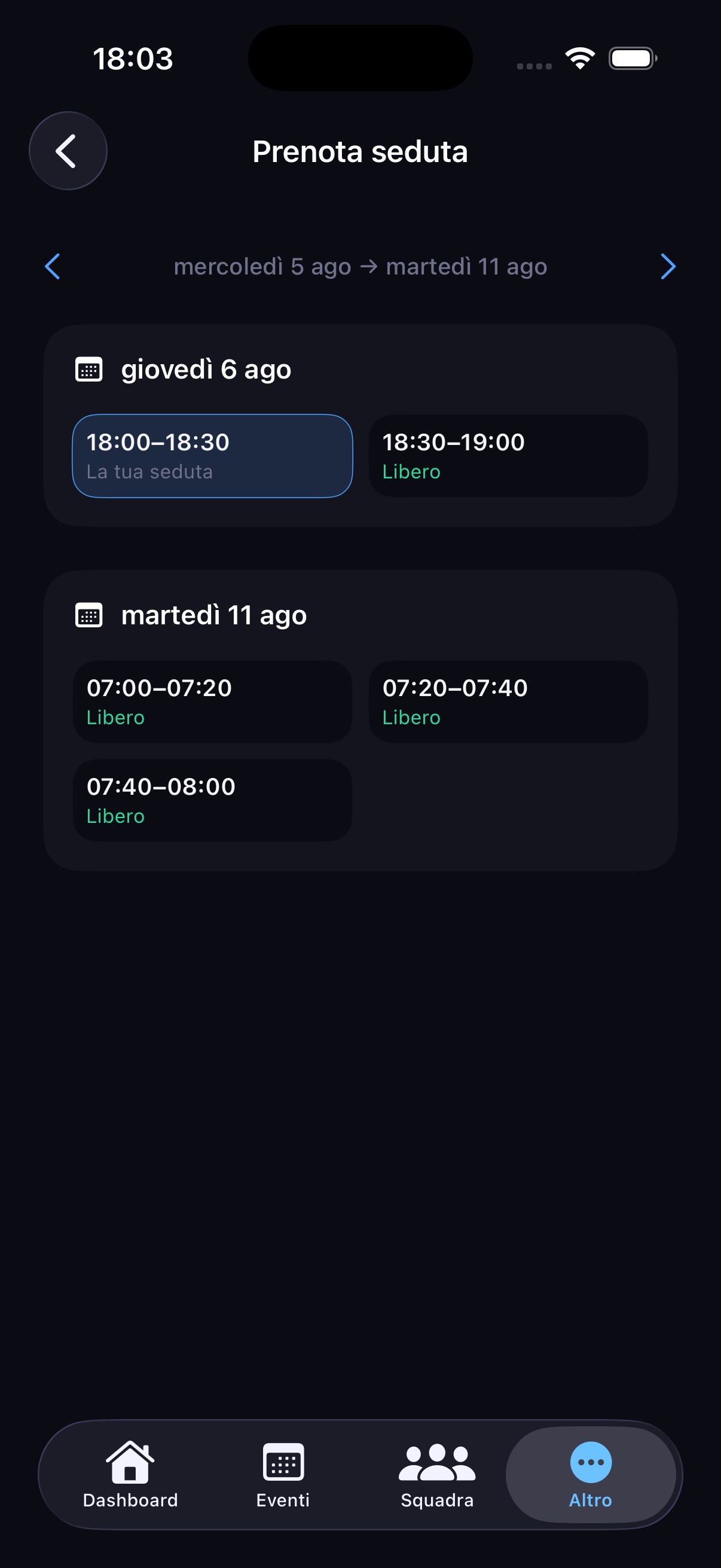
- Open More → Physiotherapy → Book a session.
- Choose a working day and tap a free slot.
- Enter the reason (required) and confirm.
In My sessions you find your bookings and can cancel up to the session time: the slot becomes free again and the physio is notified.
Swapping a slot
If the slot you need is taken, tap your teammate's slot and propose a swap, offering one of your confirmed sessions. If they accept, the appointments switch and the physio is notified.
For coach and staff
In Treatments the coach views the history of completed sessions, filterable by athlete or staff member and by period: when you set both a start and an end date, only treatments within the range are shown. Staff who aren't physiotherapists view the agenda with reasons and details hidden.
An athlete's tests and weight plans
To get an athlete's full picture before a session, open Team → player and use the buttons:
- Physical tests: session history with measurements and progress (see Physical tests);
- Weight plans: assigned plans with loads, completed sets and notes (see Weight training plans).
The physiotherapist views them in read mode. For other members each button follows its own permission: the tests permission doesn't open weight plans, and vice versa.