
Practice planning
Prepare a session with your own exercises or share a PDF you created elsewhere. The plan is optional: the team reads it only when you choose to share it.
- Web app available now at www.volleycontrolcenter.app.
- iPhone and Android version 2.2.0 is available on the App Store and Google Play. Update the app to use the new features.
Some new labels may still appear in Italian in the app while translations are completed: the Italian name is shown in brackets the first time.
Where it is and who uses it
Session planning is a Coach tool. Two entry points lead to the same session:
- More → Practices (Allenamenti): here you find Sessions (Sedute), including sessions not yet linked to an event, and My exercises (I miei esercizi), your library.
- The detail of a Practice event: from version 2.2.1, Training programme → Create with the app opens your session. Version 2.2.0 shows Prepare the exercises.
The coach who created the session writes and publishes it. Other coaches, staff and athletes of the team only read the published version. The library is personal and isn't shared with other coaches.
An optional plan: use the app or your own PDF
The updated web app is available now. Mobile version 2.2.1 has been submitted to the stores for review; the new controls will be available after approval and installation of the update.
You do not have to build a session in VCC to use a training event. The calendar, attendance, notes and attachments work even without a plan.
- Open the training event, then Training programme, marked Optional.
- Choose Create with the app to use the exercise editor, or Upload your PDF for a plan you prepared elsewhere.
- Choose a PDF up to 20 MiB, check the preview and edit its title if needed. It is still local and has not been shared.
- Tap Share with the team. Athletes can then open the selected plan from the event and Dashboard.
Under programme management, you can select a PDF already attached to this event without uploading another copy. Coaches and staff with permission to manage events can manage the PDF; the exercise editor remains the author's coaching tool.
Athletes see the selected shared plan, never a draft or an empty preparation card. If another staff member changes the programme while you work, reload and review the selection before trying again.
Your first session, step by step
- Create the practice in the calendar (see Events and schedule), open it and choose Training programme → Create with the app (in 2.2.0: Prepare the exercises). Alternatively start from More → Practices → Sessions: you can begin without an event and link it later.
- In the Session area (Seduta) check the event and date, choose the season phase and write the session goal.
- Move to the Exercises area (Esercizi) and add the first exercise: title, description, focus, duration and participants. Drawing and equipment are optional.
- Repeat for the other exercises, or copy the ones you already saved in My exercises. Check the order and the total time.
- Open the Sharing area (Condivisione), look at the preview and publish the plan. It is available in the event. If you explicitly selected a PDF as the main plan, use programme management to switch to the published app session when desired.
Until you publish, everything you write is a draft visible only to you. On the web app the draft is saved automatically; in the iPhone and Android apps use Save when the button is shown. Before switching to another device, check that the draft shows as saved and synced. A session that already has exercises opens on Exercises; an empty one opens on Session. Switching areas doesn't lose what you typed.
- 1 · SessionEvent, phase, goal, physical work before/after, equipment to prepare.
- 2 · ExercisesOrdered sequence with title, focus, duration, participants, optional drawing and equipment.
- 3 · SharingSession check, team preview and publishing.
Illustrative diagram of the three areas, not a screenshot of the app.
Session area: event, phase, physical work and equipment
Linking to the event
A session can stay a draft without an event. To publish it, it must be linked to a practice event of the same team. Each event has one main plan; other attachments and app-created sessions are retained. If you link the session to a different event, publish again for the plan to appear in the new event.
If the event is deleted or changes type (for example from practice to match), the session isn't deleted: it stays among your sessions, unlinked, and you can link it to another practice.
Season phase
Choose competitive, pre-competitive, transition or custom, with a name of your choice. The phase is context: it doesn't change durations, intensity or loads on its own.
Physical work before and after court time
In the collapsible physical preparation section you can add blocks before and/or after the court work, with duration, participants and notes. If needed, link an existing weight training plan.
Equipment to prepare
Also in the Session area you'll find the private equipment list, split into two groups:
- From exercises (Dagli esercizi): equipment listed in the session's exercises. To change it, edit the exercise.
- Coach additions (Aggiunte del coach): items you add only for preparation, independent of the exercises; you can remove them at any time.
Each item has quantity, note and a ready checkmark. A quantity of zero is valid; if the quantity is missing, the item stays "to be defined". When two stations run at the same time, the list considers the simultaneous need; the final quantity stays editable, because the app doesn't know your club's storage. The list is for the coach only and doesn't appear in the shared plan.
Available players and planned absences
While you plan, a compact bar shows available players grouped by position: setters, outside hitters, middle blockers, opposites, liberos, universals and "position to be defined". Tap it for details; it stays reachable while you choose exercises or draw.
It's based on the active roster and considers the event date, planned absences and any attendance, late arrivals or absences already recorded for that event.
| What you see | What it means |
|---|---|
| Expected available | No known absence. It is not a confirmed attendance. |
| Planned absence | The reported absence includes the session date (first and last day included). |
| Late | A late arrival was recorded: consider it for the first exercises. |
| To check | Two pieces of information conflict, for example an attendance and a planned absence. The app doesn't choose for you. |
The count of planned absences relevant to the session opens to show the names. Absence reasons aren't shown here and never enter the plan or the PDF.
Exercises area: building the sequence
Exercises appear in chronological order. Each exercise editor is split into Description, Participants, Drawings and Equipment (Descrizione, Partecipanti, Disegni, Materiale); use Done (Fine) to confirm the exercise and go back to the session.
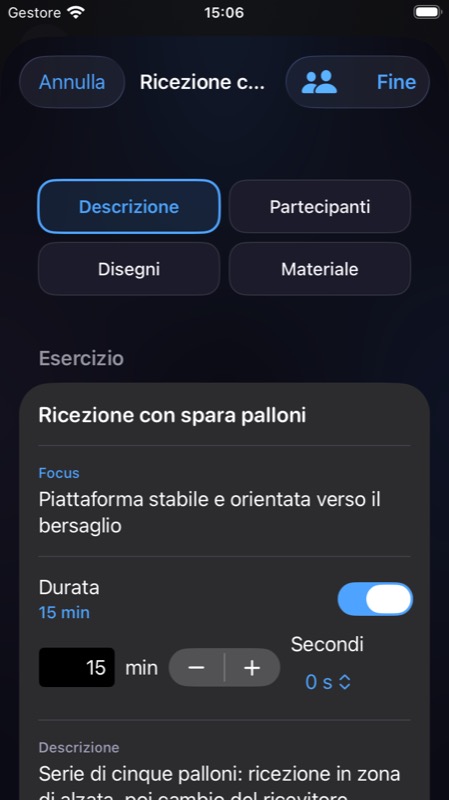
For each one you fill in:
| Field | How to use it |
|---|---|
| Title | Short and recognisable, e.g. "Three-player reception in zones 1-6". It also helps you find it in the library. |
| Description | Organisation and execution. Paragraphs are kept and read well on a phone. |
| Focus | What you want to work on, e.g. "platform angled towards zone 2". In the published plan it appears with the Focus label. |
| Duration | Minutes and seconds. If you leave it empty, the exercise is to be defined and the session total is shown as partial. |
| Participants | All available players (default), one or more positions, or individual athletes, including those without an account. |
| Drawing and equipment | Optional: see the next sections. |
The sequence can also include breaks and station work. For simultaneous stations, time counts as the group that finishes last, not the sum of the groups. If the total exceeds the event's available time, the overrun is flagged. If the same athlete is assigned to two simultaneous activities, the app highlights it without blocking you.
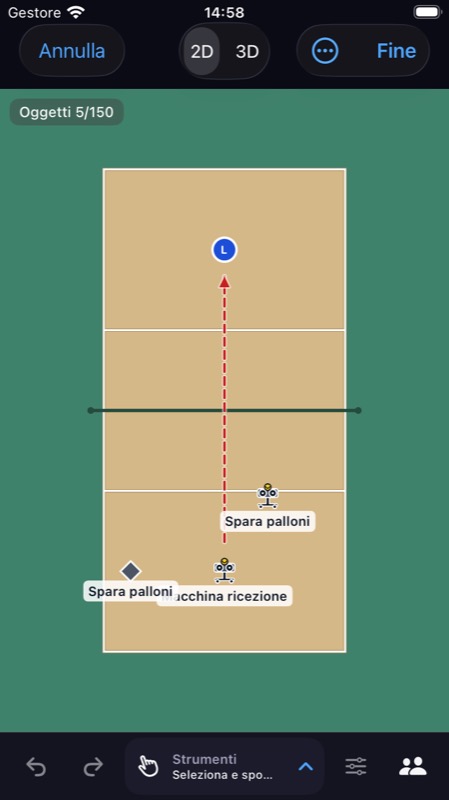
Optional 2D and 3D drawings
An exercise can have one or more static frames, for example "starting position" and "development". For each frame choose the background (full court, half court or board) and the view with the 2D / 3D switch: from above, in perspective or both. They are two views of the same drawing: switching doesn't move anything. There are no animations. At the top you see how many objects you've used against the drawing limit (for example 5/150).
Tools open from the bottom panel:
- player tokens and equipment symbols;
- shapes and highlighted areas;
- solid or dashed arrows, straight or curved;
- text and freehand lines;
- selection, moving, undo and redo;
- the Ball machine symbol (Spara palloni), which you can place, move, rotate, duplicate, rename and delete.
Equipment and ball machine
- Open the exercise and go to its equipment.
- Choose the type, for example balls, carts, boxes or Ball machine.
- Set quantity and an optional note ("2 full carts at the net").
Equipment is always optional: a new session and a new exercise start with no equipment and no ball machine. Copying the exercise or saving it to the library keeps its equipment. It then appears in the From exercises group of the Session area list.
My exercises: your personal library
In More → Practices → My exercises you keep the exercises you reuse: title, description, focus, duration, drawings and equipment.
- Saving to the library is an explicit action. References to individual athletes are removed from the template, tokens included; re-read free text where you typed names.
- Inserting an exercise from the library creates a copy in the session: you can adapt it without changing the template.
- Editing a template doesn't change sessions you already prepared or plans already published.
Sharing area: preview and publishing
Before publishing, the Sharing area shows what still needs checking: timing, incomplete exercises, participants no longer available. The preview uses exactly the data the team will see.
- Check the session is linked to the right event.
- Open the preview and check order, focus, drawings and participants.
- Publish. A connection is required: without network, publishing doesn't start and the draft isn't presented as shared.
After publishing you see the version number and date. If you edit the session, the changes stay in draft: the team keeps reading the last published version until you publish the update.
If you edit the same session from two devices, the app doesn't silently overwrite the most recent work: it asks which version to keep. If the app closes before saving, changes not yet sent can be recovered only on that device, for the same account and team: they aren't on the server yet and other devices don't see them.
What athletes and staff see
When the main plan is an app-created session, team staff and athletes find its published version in the event detail, read-only: goal, phase, any physical blocks, sequence with durations, description with focus, participants and drawings, which they can enlarge. They can download the PDF of the published version. Athletes also see Today's practice (Allenamento di oggi) on the Dashboard, with the See the exercises button (Vedi gli esercizi). When the main plan is an uploaded PDF, Open PDF programme opens that document from the event or today’s practice instead.
| Shared with the team | Never shared |
|---|---|
| Published version, drawings, focus, participants, PDF | Drafts and unpublished changes, personal library, private equipment list, absences and their reasons, private notes |
Choosing an exercise's participants says who does it, not who can read it: the published plan can be read by team members who have access to the event. Supporters don't see it. If an event has no published plan, the section doesn't appear.
Frequent questions and issues
I can’t see the programme controls
Open a Practice event. From version 2.2.1, Training programme offers Create with the app to coaches and Upload your PDF to coaches and staff allowed to manage events. In 2.2.0, the previous editor entry is called Prepare the drills. The update is already live on the web app; iPhone and Android require version 2.2.1 once approved by the stores.
Athletes say they can't see the plan
Check the main plan selected in the event. For an app-created session, publish the version linked to the correct event; for a PDF, tap Share with the team, rather than just opening the local preview. If you chose not to show a plan, the athletes’ section stays hidden. Changes to an already published session must be published again.
The session total says "partial"
At least one exercise has no duration: fill it in or knowingly leave it to be defined.
The ball machine appears in the equipment list but I don't need it
It was chosen in an exercise's equipment: open that exercise and remove it. The symbol in the drawing can stay.