
Events and schedule
The team's practices, matches and appointments, always up to date for everyone.
The Events section holds the team calendar. Events can be created by the coach and anyone with the Create events permission; other members see them in the app and get notified when something changes.
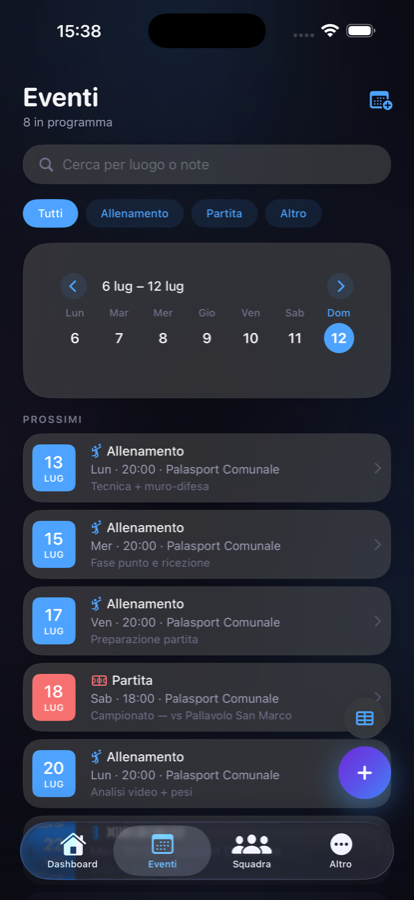
Creating an event
- Open Events and tap +.
- Choose the type: Practice, Match or Other.
- Select the date and, optionally, the time: start only ("20:00") or a range ("20:00-22:00").
- Choose the venue and add any notes.
- If needed, attach one or more documents.
- Tap Create Event.
Practices: plan and attendance
Opening a practice, the coach finds Prepare the exercises (Prepara gli esercizi): it opens the linked session or creates it. Once the session is published, the practice plan appears read-only in the event detail, with drawings and PDF. Without a published plan, the section doesn't appear. Full details in Practice planning.
On iPhone and Android the detail also contains an Attendance row, collapsed at first: open it to record who is there. See Attendance.
Version 2.2.0 update: web app available now; iPhone and Android available after updating the app to 2.2.0.
Matches: the linked page
A Match event can be linked to the Match page, which gathers roster, documents, live box score, statistics and videos. Event and match share date, time, venue and organisational notes: change the time on one and the other updates. From the Dashboard's month calendar, linked matches open the match page directly.
Venue and attached documents
Venue and saved gyms
In the Venue field choose one of your saved gyms or "New venue...", entering name and Google Maps link. With Save to my gyms it's ready next time. Anyone opening the event can tap "Open in Maps".
Attached documents
You can attach several documents to each event, visible to team members from the event detail. Every addition or removal asks for confirmation. For linked matches these attachments also appear in the match Materials, marked "From the calendar".
Editing or deleting
- Open the event from the list or the calendar.
- Tap Edit to change type, date, time, venue or notes, then Save.
- Or tap Delete and confirm. Deletion can't be undone.
Importing many events
- In Events tap the import button (table icon) and choose Download Excel template. The template already includes your saved gyms.
- Fill in the file with one row per event.
- Back in the app, choose Import from Excel and select the file (.xlsx or CSV).
- The app tells you how many events were created and, for invalid rows, the reason row by row.
Creating an event doesn't create an empty practice plan: a session is only prepared when you open it.
Notifications and phone calendar
When you create or edit an event, the team gets a notification; for a bulk import a single summary notification is sent. Calendar notifications are "essential" (see Notifications). Publishing a practice plan doesn't send a dedicated push notification.
Athletes find events in the Events section (with search, type filters and past events), in the Dashboard month calendar and in each event's detail.