
Matches
One page per game: organisation, roster, documents, live box score, stats from the .dvw file, videos and analysis, without searching different sections.
- Web app available now at www.volleycontrolcenter.app.
- iPhone and Android version 2.2.0 is available on the App Store and Google Play. Update the app to use the new features.
Some new labels may still appear in Italian in the app: the Italian name is shown in brackets the first time.
Where it is
Open More → Matches (Partite) for the list of games. You also reach the same page:
- from the calendar, opening a linked match (also from the monthly calendar on the Dashboard);
- from live scouting and statistics of a match that is already linked;
- from Match Documents: games you had already created there are the same matches, with the same documents.
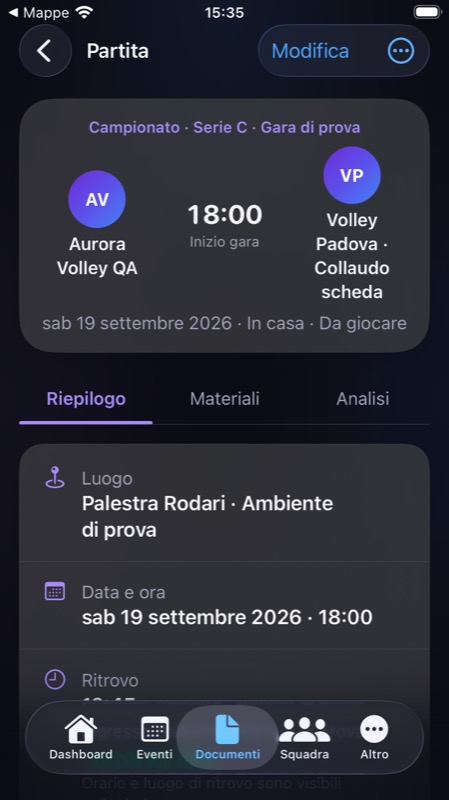
Creating a match and linking the calendar
- Create the game from the Matches list, or create a Match event in the calendar.
- Enter the opponent: it's the only required field. Competition, phase, date, time and venue can be completed later.
- If the match has no event yet, use Add to calendar (Aggiungi al calendario): the event is created with the same data.
- Add the team's meeting information (ritrovo) if you need it.
Match and event are linked both ways: when the event exists, date, time, venue and organisational notes are the same. Change the time from the match and the event updates, and vice versa. There are never two different times for the same game.
Match roster and optional call-ups
Call-ups are not required. Every match starts with Whole roster (Tutto il roster): all active athletes of the team. You don't need to upload PDFs or fill in lists to start scouting, upload documents or watch the video.
Customising call-ups
- On the match page tap Customise call-ups (Personalizza convocazioni): the roster opens with everyone selected.
- Remove the athletes you don't want to call up and save. An empty selection isn't accepted.
- To go back to the starting situation use Use whole roster (Usa tutto il roster).
| Situation | How it's handled |
|---|---|
| Whole roster (default) | All active athletes are included to organise the game. No attendance is written: it isn't recorded attendance. |
| Absence recorded for the match | It stays recorded and excludes the athlete from the roster proposed to the scout, even after going back to Whole roster. |
| Athlete not called up | "Not called up", not "absent": their attendance percentages are not affected. |
| Call-up PDF uploaded | It's just an attachment: uploading, replacing or deleting it doesn't change the athlete selection. |
When you start scouting from the match, or close the game, VCC keeps a snapshot of the roster. An athlete added or archived later doesn't change the line-up of a game already played.
Summary, Materials and Analysis
The page has three parts, in the same order on web, iPhone and Android.
Summary
Opponent, competition and phase, date, time and venue with map link, meeting information, match status, roster or call-ups and access to attendance. The result appears only if it exists, together with its source: no invented "0–0".
Materials
- Documents: Call-ups, Uploaded box scores and Other documents. Event attachments appear marked "From the calendar". The same file isn't duplicated.
- Live box score: open or export it; people with permission see Start live scout or Resume live scout.
- Imported statistics: source (.dvw file), import date and the import command. Importing is separate from uploading a document.
- Videos: linked videos open in the Video analysis player.
Analysis
Leads to the match statistics and to Game analysis when an imported .dvw file contains the necessary data.
If a section fails to load, you see an error with a retry option: it isn't shown as empty.
Live box score, uploaded box scores and .dvw files
They are three different materials and stay separate:
| Name | Where it comes from | Does it become statistics? |
|---|---|---|
| Live box score (Tabellino live) | Generated by VCC live scouting. The exported PDF is named Tabellino-live-… | Yes, as the "live box score" source, if no .dvw file is associated with the match. |
| Uploaded box scores (Tabellini caricati) | A document uploaded by someone with permission, with title and optional source software (e.g. "Full box score — Ace Evolution"). | No: it's a document to read. |
| .dvw file | Scout file exported by compatible software, such as Ace Evolution or Data Volley, and imported into VCC. | Yes, after import with player matching. |
Uploading a box score or document
- In Materials choose to upload a document.
- Pick the type: Box score, Call-ups or Other document. The title is suggested from the file name and can be changed.
- Optionally enter the source software. Confirm the upload.
Importing the match .dvw file
- In Materials use the statistics import command: the destination match is already selected.
- Choose the .dvw file and check the preview. If opponent or date don't match, the app asks you to confirm.
- Match each number in the file to the right roster athlete and confirm. Statistics and link are saved together: an error doesn't leave a half-finished import.
An example: from the day before to Monday
- Thursday: you create the match from the calendar, add the meeting time and keep Whole roster. An athlete reported an absence: you record it and they don't appear in the roster proposed to the scout.
- Saturday: you start live scouting from the match page; opponent, date and roster are already filled in.
- Sunday: the scout sends you the .dvw file and the full box score as a PDF. You import the file and upload the PDF as a Box score.
- Monday: you open the match, read the uploaded box score, jump to the linked video and then to Game analysis to prepare the next session.
Unlinking and archiving
- Unlink from match (Scollega dalla partita) only removes the link: the document, file or scout stays in its own module.
- Archive match (Archivia partita), in the page's More menu, hides the game from active matches while keeping materials and history. It asks for confirmation and can be reversed.
Actual deletion of documents, videos or statistics only happens in their own modules, with their confirmations.
Who can do what, and what athletes see
| Action | Required permission |
|---|---|
| Organisation, calendar link, call-ups | Create events |
| Upload and classify documents | Upload documents |
| Start live scouting and import the .dvw file | Scouting |
| Link a video | Upload videos |
| Record attendance | Attendance and absences |
Permissions are assigned in Settings → Members and permissions (see Invites and members). Permission on documents doesn't grant permission to create events.
Athletes only see sections that contain material they have access to; empty sections don't appear. For attendance they only see their own row, never teammates' absence reasons. Supporters don't access the internal page. A shared video link opens only that video, not the match.
Frequent questions and issues
I uploaded the box score PDF but statistics are empty
That's expected: an uploaded document doesn't import data. For statistics, import the match .dvw file.
The match time also changed in the calendar
The match and its event share the same organisational data: this is intended.
I have two games against the same opponent in the same tournament
VCC doesn't merge them automatically: check date, time and competition when you link material.
The screen reports an edit conflict
Someone else saved the match from another device in the meantime. Reload the page and repeat your change: no update is silently lost.